DICOM Viewer for Windows: Free Options for Windows 10 and 11 Compared

Your imaging center gave you a CD, a USB stick, or a download link, and Windows does not know what to do with the files. The Photos app cannot open them, and the files often lack extensions. That is because medical scans are stored in the DICOM format, and Windows does not include a DICOM viewer.
The fix is free. You can open the files in a viewer that runs in your web browser, or download a free Windows app built for medical images. This guide compares six options for Windows 10 and 11, ranging from a browser-based viewer that requires no download to paid apps used by clinicians. Every license, download option, and Windows requirement listed below was verified on the developer’s website in October 2026.
If you are new to the format, start with what DICOM is and what a .dcm file is.
Quick picks
| If you want to | Use | Cost |
|---|---|---|
| Look at a scan once, with nothing to download | Medicai free online DICOM viewer | Free |
| A simple free Windows app | MicroDicom | Free for non-commercial use |
| A free, open source app that also runs on Mac and Linux | Weasis | Free |
| A fast, polished viewer for regular use | RadiAnt | Paid subscription, free trial |
| A one-time license instead of a subscription | Sante DICOM Viewer Pro | $280 per user, 90-day demo |
| Research, segmentation, and 3D models | 3D Slicer | Free |
How to choose a DICOM viewer for Windows
Five questions narrow the choice.
Do you need it once or regularly? To view your own scan before an appointment, a browser viewer is the quickest option: nothing to download, and you can close the tab when you are done. If you open studies every week, a desktop app handles large studies better and keeps a list of what you have opened.
Is it for personal or commercial use? This matters more on Windows than on any other platform. MicroDicom is free for non-commercial use only; a clinic, company, or paid service requires a commercial license. Weasis and 3D Slicer are open source and free for any use.
Will the images be used for a diagnosis? None of the viewers in this guide claim FDA clearance on their websites, and MicroDicom states that it must not be used for clinical purposes. A patient or student can use any of them to look at images. A doctor reading studies for a diagnosis needs a viewer cleared for that purpose; our guide to the best DICOM viewers lists the FDA-cleared options with their 510(k) numbers.
Can you install software on this computer? Work and hospital computers often block new apps. A browser viewer avoids the problem, and portable versions of MicroDicom and Weasis run from a folder or USB drive without a full installation.
Is your Windows 32-bit or 64-bit? Most computers sold in the last decade are 64-bit. Weasis requires Windows 10 or later on 64-bit systems, while MicroDicom offers a 32-bit installer and still supports Windows 7. To check, open Settings, then System, then About, and look at System type.
DICOM viewers for Windows compared
| Viewer | Cost | Windows versions | Download options | Diagnostic use |
|---|---|---|---|---|
| Medicai free online viewer | Free | Any modern browser (also Mac and Linux) | None needed | No (research and education use) |
| MicroDicom | Free for non-commercial use | Windows 7, 8, 8.1, 10, 11 (32-bit and 64-bit) | Installer, portable ZIP, Microsoft Store | No (“must not be used for clinical purposes”) |
| Weasis 4.7 | Free, open source | Windows 10 or later, 64-bit | MSI installer, portable archive, Microsoft Store, winget, Chocolatey | No clearance stated |
| RadiAnt 2026.1 | Paid subscription per PC, free trial | Windows 7, 8, 8.1, 10, 11 | Installer | No clearance stated |
| Sante DICOM Viewer Pro | $280 per user (perpetual), 90-day demo | Windows 10, 11, Windows Server | Installer | No clearance stated |
| 3D Slicer 5.12.4 | Free, open source | Modern Windows (also Mac and Linux) | Installer | No clearance stated |
“No clearance stated” means the developer’s site does not claim FDA clearance or CE marking for the product. Treat these tools as not intended for primary diagnosis.
Medicai free online DICOM viewer
The free online DICOM viewer runs in Chrome, Edge, Firefox, or any other modern browser on Windows, with no download required and no account needed. Click Load Files to select individual images, or Load Folder to open an entire study, such as a folder copied from a CD. If your study came as a ZIP file, extract it first.
It includes the tools most people need to look at a scan: zoom, pan, window and level (brightness and contrast), scrolling through slices, and measurement. According to the tool’s page, “Your files are processed in your browser and are not uploaded to a server.” The same page states that it is intended for research and educational purposes only and is not certified for primary diagnostic use.
Best for: reviewing your own scan, verifying that a disc contains the correct study, and use on computers where you cannot install software.
MicroDicom
MicroDicom is the most-searched free DICOM viewer for Windows, and for good reason. It is free for non-commercial use, runs on everything from Windows 7 to Windows 11, and comes as a 32-bit or 64-bit installer, a portable ZIP that runs from a USB drive, and a version for CDs and DVDs. It is also listed in the Microsoft Store.
It does more than most free viewers: it opens single files, folders, and DICOMDIR discs with a patient list, shows multiplanar reconstruction (axial, coronal, sagittal, and oblique), renders CT and MR series in 3D, exports images to JPEG, PNG, BMP, GIF, and TIFF, and includes an anonymizer to remove patient details before sharing.
Two limits matter. Commercial use requires a paid license from MicroDicom’s store. The developer states that MicroDicom has no CE mark and no FDA approval and must not be used for clinical purposes. It runs on a Mac only through Wine or CrossOver.
Best for: patients, students, and researchers who want a capable free Windows app.
Weasis
Weasis is a free, open-source viewer (EPL 2.0 and Apache 2.0) that works the same way on Windows, macOS, and Linux. The current version is 4.7. On Windows, it needs Windows 10 or later on a 64-bit computer, and you can install it in five ways: an MSI installer, a portable archive for a USB drive or a computer without administrator rights, the Microsoft Store, winget, or Chocolatey. Since version 4, it runs natively, with no separate Java runtime to install.
Weasis covers 2D viewing, measurements, and multiplanar views, and can connect to PACS and DICOMweb servers. Because it is open source, it is free for commercial use too.
Best for: clinics and teams with a mix of Windows and Mac computers that want a single free viewer, and IT teams that deploy software via winget or MSI.
RadiAnt DICOM Viewer
RadiAnt is a fast, polished Windows viewer known to many clinicians and researchers; its developer says it has been cited in more than 6,000 scientific papers. It runs on Windows 7 through 11 only.
RadiAnt is not free. It is sold as a subscription for one PC at a time, with plans from one month to five years, priced in euros and renewed manually rather than automatically. A free trial is available from the developer’s site. The current version, 2026.1, released in August 2026, fixes a security vulnerability that could allow a malicious compressed DICOM file to crash the program, so update any older installation.
Best for: regular Windows users who want speed and are willing to pay for it.
Sante DICOM Viewer Pro
Sante DICOM Viewer Pro is a full-featured Windows viewer sold with a perpetual license: $280 for a single user or $1,500 for a site, with free updates. A free demo works without restriction for 90 days. It runs on Windows 10, Windows 11, and Windows Server. Its product page makes no FDA or CE statement.
Best for: users who prefer a one-time purchase to a subscription.
3D Slicer
3D Slicer is free, open-source software (BSD-style license) for medical image computing. The current stable version, 5.12.4, was built in September 2026, and it runs on Windows, macOS, and Linux. Researchers use it for segmentation, registration, 3D modeling, and image analysis, and it has a large library of extensions.
It is far more than just looking at a single MRI, and the learning curve is steep. Its site lists no regulatory clearance, so treat it as research software.
Best for: research groups, 3D printing from scans, and advanced analysis.
Viewers that came on your CD
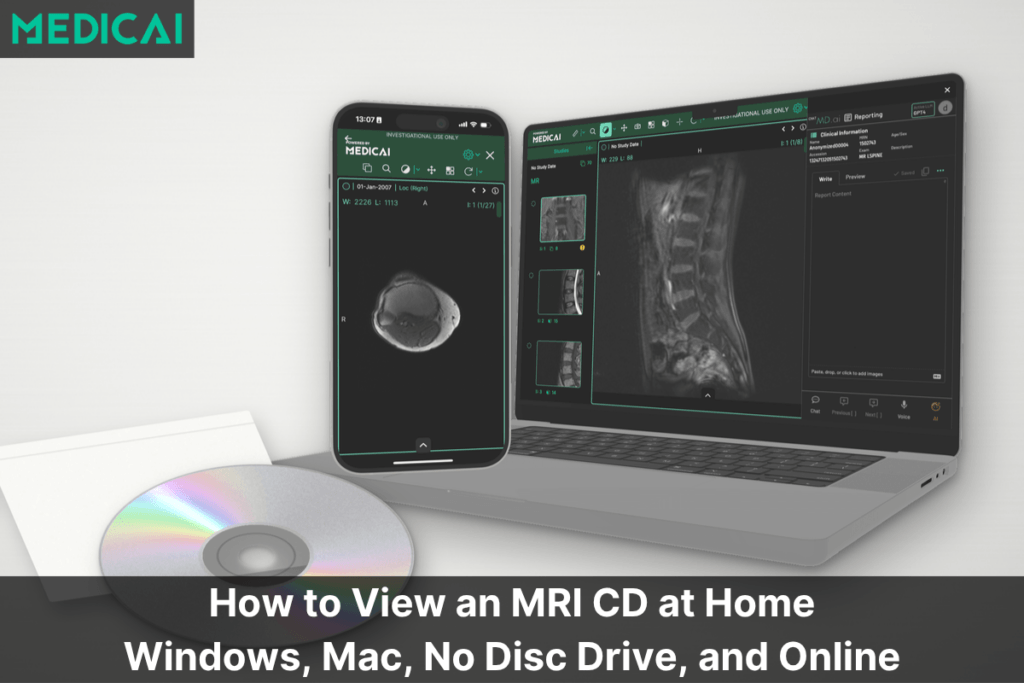
Many imaging centers include a small viewer program on the disc, which may start automatically or appear as an .exe file alongside the images. These usually work on Windows, but they vary in age and quality, and some are blocked by security software. If the disc viewer does not start, copy the study folder to your computer and open it in one of the viewers above. For the full process, see how to view an MRI CD at home.
How to download a DICOM viewer and open your scan on Windows
These steps work for most studies from a hospital or imaging center.
- Download from the official site. Use microdicom.com, weasis.org, radiantviewer.com, santesoft.com, download.slicer.org, or the Microsoft Store, where the developer offers it. Avoid third-party download sites, which may bundle unwanted software.
- Pick the right version. Most computers need the 64-bit installer. If you cannot install software, choose a portable version (MicroDicom and Weasis offer one) or use the browser viewer instead.
- Copy the study to your computer. Open the CD or USB drive in File Explorer and copy everything, including the DICOMDIR file and the folders next to it, into a new folder. Working from a copy is faster and keeps the disc safe.
- Extract downloads. If the study arrived as a ZIP file, right-click it and choose Extract All.
- Open the folder. In the free online DICOM viewer, click Load Folder. In a desktop app, use the open or import option to select the folder or DICOMDIR file.
- Choose a series. Most studies contain several series, such as different MRI sequences or CT reconstructions. Open each one and scroll through the slices.
Troubleshooting
| Problem | What to try |
|---|---|
| Windows shows “Windows protected your PC” | Microsoft Defender SmartScreen is warning about a new download. If the file came from the developer’s official site, click More info, then Run anyway. |
| The installer will not run on your computer | Check whether Windows is 32-bit or 64-bit (Settings, System, About). Weasis needs 64-bit Windows 10 or later; MicroDicom offers a 32-bit installer. |
| You cannot install software at work | Use a portable version from a USB drive, or the browser viewer. |
| Files have no .dcm extension | That is normal. Open the whole folder or the DICOMDIR file rather than single files. |
| The viewer on the CD does not start | Copy the study to your computer and open it in one of the viewers above. |
| Nothing loads from a ZIP file | Extract it first, then open the extracted folder. |
| Images look too dark or too bright | Adjust window and level. Most viewers also have presets for lung, bone, or brain. |
Viewing and sharing studies for clinics
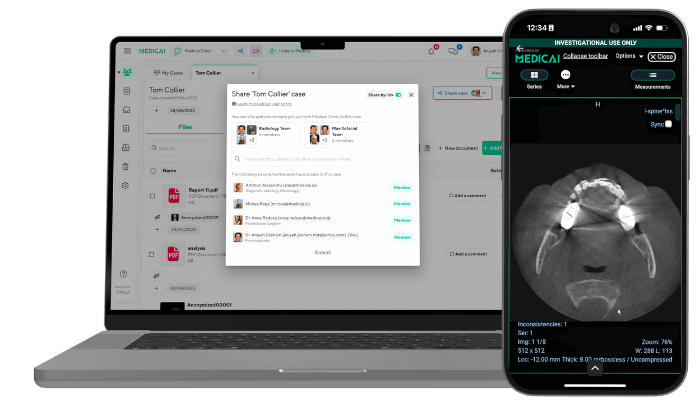
The viewers above put images on one Windows computer. Clinics and imaging teams usually also need to receive studies from scanners, give several people access from any device, and send studies to referring doctors without burning discs. That is the job of a cloud viewer connected to a PACS. The Medicai DICOM Viewer runs in Chrome, Edge, Firefox, or Safari and includes permissions, audit logs, and controlled sharing. For other platforms, see our guides to the DICOM viewer for Mac and mobile DICOM viewers.
Frequently asked questions
What is the best free DICOM viewer for Windows?
For personal use, MicroDicom is the most popular free option: it runs on Windows 7-11, has a portable version, and includes 3D, MPR, and JPEG export. For commercial use, Weasis is free and open source. To view a scan once without downloading anything, use a browser-based viewer such as the free Medicai online DICOM viewer.
What is a good free DICOM viewer for Windows 11?
MicroDicom and Weasis both support Windows 11, and both are listed in the Microsoft Store. Weasis requires 64-bit Windows 10 or later, which includes all Windows 11 computers. RadiAnt also runs on Windows 11 but is paid after the trial.
Is there a free DICOM viewer download for Windows 10?
Yes. MicroDicom (free for non-commercial use), Weasis, and 3D Slicer are available as free downloads for Windows 10. Download them from the developers’ own sites or the Microsoft Store.
Is RadiAnt free?
No. RadiAnt offers a free trial, but continued use requires a paid subscription for each PC. If you need a free Windows viewer, choose MicroDicom for personal use or Weasis for any use.
Can I use MicroDicom at work?
MicroDicom is free for non-commercial use only; commercial use requires a paid license from its store. Its developer also states that it has no CE mark or FDA approval and must not be used for clinical purposes.
Is there a free online DICOM viewer?
Yes. The Medicai free online DICOM viewer opens DICOM files in any modern browser on Windows with no download or account required, and processes them in your browser rather than uploading them. It is for research and educational use, not primary diagnosis.
Can I use these viewers for a diagnosis?
None of the viewers in this guide claim FDA clearance on their websites. They are fine for looking at your own images, but a doctor reading studies for a diagnosis needs a cleared viewer. Our best DICOM viewers guide lists FDA-cleared options with their 510(k) numbers. Ask your doctor or radiologist to explain what your images show.
Sources


Related Articles


Lets get in touch!
Learn more about how Medicai can help you strengthen your practice and improve your patients’ experience. Ready to start your Journey?
Book A Free Demo