DICOM Viewer for Mac: Free and Paid Options Compared

You have a CD or a download link from your imaging center; you double-click a file on your Mac, and nothing useful happens. Preview shows an error or a blank icon, and Photos will not import it. That is normal. Medical scans are stored in the DICOM format, and macOS does not include a DICOM viewer.
You have two ways to fix that: open the files in a viewer that runs in your web browser, or install a Mac app built for medical images. This guide compares the main options for Mac users, from a free browser-based viewer to the FDA-cleared app used by radiologists. Every price, license, and macOS detail below was checked against the developer’s own website in October 2026.
If you are new to the format, start with what DICOM is and what a .dcm file is.
Quick picks
| If you want to | Use | Cost |
|---|---|---|
| Look at a scan once, with nothing to install | Medicai free online DICOM viewer | Free |
| A full free Mac app for regular use | Horos | Free, open source |
| A cleared viewer for clinical diagnosis on a Mac | OsiriX MD | From $69.99 a month |
| A free viewer that also runs on Windows and Linux | Weasis | Free, open source |
| Research, segmentation, and 3D work | 3D Slicer | Free, open source |
How to choose a DICOM viewer for your Mac
Five questions narrow the choice quickly.
- Do you need it once or every week? If you only want to view your own MRI or CT before an appointment, a browser-based viewer is the fastest route. There is nothing to download, and you can close the tab when you are done. If you open studies regularly, a desktop app gives you more tools and handles large studies better.
- Will the images be used for a diagnosis? Patients and students can use any of these viewers to look at images. Doctors who read studies for a diagnosis need software cleared for that purpose. On a Mac, that usually means OsiriX MD, which is FDA-cleared and CE-marked. Horos, Weasis, 3D Slicer, OsiriX Lite, and the Medicai free viewer are not presented by their makers as cleared devices for primary diagnosis.
- Can you install software on this Mac? Work and hospital computers often block new apps. A browser viewer avoids that problem.
- Is it a shared computer? If you install a desktop app, imported studies may stay in its local database after you finish. Delete them when you are done, or use a viewer that does not keep a copy.
- Do you need to send the scan to someone? Viewing and sharing are different jobs. If a doctor or second-opinion service needs the study, a secure sharing link is easier than mailing a CD. For phones and tablets, see our guide to mobile DICOM viewers.
DICOM viewers for Mac compared
| Viewer | Price | License | Runs on | Apple Silicon | Cleared for diagnosis |
|---|---|---|---|---|---|
| Medicai free online viewer | Free | Free web tool | Any modern browser on Mac, Windows, Linux | Yes, runs in the browser | No (research and education use) |
| Horos 4.0.1 | Free | Open source, LGPL 3.0 | macOS | Yes | No |
| OsiriX MD | From $69.99 a month | Commercial | macOS | Yes | Yes: FDA Class II, CE Class IIa |
| OsiriX Lite | Free | Demo of OsiriX MD | macOS | Not stated separately | No |
| Weasis 4.7 | Free | Open source, EPL 2.0 / Apache 2.0 | macOS, Windows, Linux | Not stated | No |
| 3D Slicer 5.12.4 | Free | Open source, BSD-style | macOS, Windows, Linux | Not stated | No |
Medicai free online DICOM viewer
The free online DICOM viewer runs in any modern browser on a Mac, including Safari, Chrome, Firefox, and Edge. You do not need an account. Click Load Files to pick individual images, or Load Folder to open an entire study, such as a folder copied from a CD. If your study came as a ZIP file, unzip it first.
The viewer includes the tools most people need to view a scan: zoom, pan, window and level (brightness and contrast), slice scrolling, and measurement. According to the tool’s page, “Your files are processed in your browser and are not uploaded to a server.”
The limits are stated clearly on the same page. The tool is intended for research and educational purposes only and is not certified for primary diagnostic use. That makes it a good fit for patients, students, and quick checks, not for a radiologist’s reading.
Best for: looking at your own scan, checking that a CD or download contains the right study, and Macs where you cannot install apps.
Horos
Horos is the best-known free DICOM viewer for Mac. It is open source under the LGPL 3.0 license and grew out of the OsiriX code base, so the interface will feel familiar to anyone who has used OsiriX.
Some older articles say Horos development has stopped or that it does not run on newer Macs. That is out of date. The Horos site lists version 4.0.1, which supports Apple Silicon and macOS 26 Tahoe, and describes the project as continuously improving.
Horos offers 2D viewing, multiplanar reconstruction, 3D rendering, a local database for imported studies, and the ability to query and receive from PACS servers. It is free for anyone to use, but it is not cleared for primary diagnosis. Horos is Mac only; its site points Windows users to a different product.
Best for: students, researchers, and patients who want a full desktop viewer at no cost.
OsiriX MD and OsiriX Lite
OsiriX comes in two versions, and the difference matters.
OsiriX MD is the certified version. Its site lists it as FDA-cleared (Class II) and CE-marked (Class IIa), with support for both Intel and Apple Silicon Macs. Pricing starts at $69.99 a month. Radiologists and clinics that read studies on a Mac for diagnosis usually choose it.
OsiriX Lite is free. The developer describes it as a complete demo version of OsiriX MD and states that it is not certified as a medical device for primary diagnosis and is only for scientific use. It is a reasonable way to try the OsiriX interface before paying.
Best for: OsiriX MD for clinical reading on a Mac; OsiriX Lite for evaluating it.
Weasis
Weasis is a free, open-source viewer (EPL 2.0 and Apache 2.0) that runs on macOS, Windows, and Linux. The current release is 4.7. Because it works the same way on every platform, it suits teams with a mix of Macs and PCs, and some hospitals and PACS products use it as their bundled viewer.
It handles standard 2D viewing, measurements, and multiplanar views, and it can connect to PACS and DICOMweb servers. The interface is more technical than a browser viewer, so it is better for people who will use it regularly.
Best for: mixed Mac and Windows teams that want one free viewer everywhere.
3D Slicer
3D Slicer is free, open-source software under a BSD-style license for Windows, macOS, and Linux. The current stable release is 5.12.4. It is far more than a viewer: researchers use it for segmentation, 3D modeling, registration, and image analysis, and it has a large library of extensions.
That power comes with a steep learning curve. If you only want to look at an MRI, it is more than you need. The Slicer site does not list a regulatory clearance, so treat it as research software.
Best for: research groups, 3D printing from scans, and advanced image analysis.
Mac App Store viewers
Several DICOM viewers are available for purchase or free in the Mac App Store. Quality and features vary widely, and some limit the number of images or lock tools behind in-app purchases. Before you install one, check the developer’s site for the current version, what the free tier includes, and whether the app is cleared for diagnosis if that matters to you.
What about RadiAnt?
RadiAnt is a popular, fast viewer, but it runs only on Windows. Its developer lists Windows 11, 10, 8.1, 8, and 7, with no macOS version. If someone recommends RadiAnt to a Mac user, one of the options above is the closest match. For a wider comparison across platforms, see our list of the best DICOM viewers.
Why Preview and Photos cannot open DICOM
A DICOM file is not a normal picture. It holds the image pixels together with patient, study, and scanner information in a structure that general image apps do not read. A CT or MRI study is also usually hundreds of separate slices that a viewer stacks into a series. Preview and Photos are built for single JPEG, PNG, and HEIC images, so they cannot display DICOM. Converting slices to JPEG is possible, but it loses the measurements and slice order that make the scan useful.
How to open DICOM files on a Mac
These steps work for most studies from a hospital or imaging center.
- Get the files onto your Mac. If you have a CD and your Mac has no disc drive, use an external USB optical drive. If you have a download link, save the file to your Downloads folder.
- Copy the study to a folder. Drag the whole contents of the CD, including the DICOMDIR file and the folders next to it, into a new folder on your desktop. Working from a copy is faster and keeps the original disc safe.
- Unzip downloads. If the study arrived as a ZIP file, double-click it in Finder to extract it.
- Open the folder in a viewer. In the free online DICOM viewer, click Load Folder and choose the folder. In Horos, OsiriX, or Weasis, use the import option and point it at the same folder.
- Pick a series. Most studies contain several series, such as different MRI sequences or CT reconstructions. Open each one from the series list and scroll through the slices.
Your CD may also include a viewer program from the imaging center. Many of these are Windows-only and will not run on a Mac, which is why a separate viewer is usually needed. For a step-by-step walkthrough of discs from MRI centers, see how to view an MRI CD at home.
Troubleshooting
| Problem | What to try |
|---|---|
| macOS says the app cannot be opened | Open System Settings, go to Privacy and Security, and choose Open Anyway for the app. Only do this for software downloaded from the developer’s official site. |
| The CD does not appear in Finder | Try a different USB port or drive, and check that the disc is a data CD rather than a printed report. |
| Files have no .dcm extension | That is common. DICOM files are often named with numbers only. Load the whole folder rather than individual files. |
| The viewer shows nothing after loading a ZIP | Unzip the file first, then load the extracted folder. |
| The study is huge and slow in the browser | Load one series folder at a time, or use a desktop viewer such as Horos or Weasis. |
| Images look too dark or too bright | Adjust window and level. Many viewers also offer presets for lung, bone, or brain. |
Viewing and sharing studies for clinics
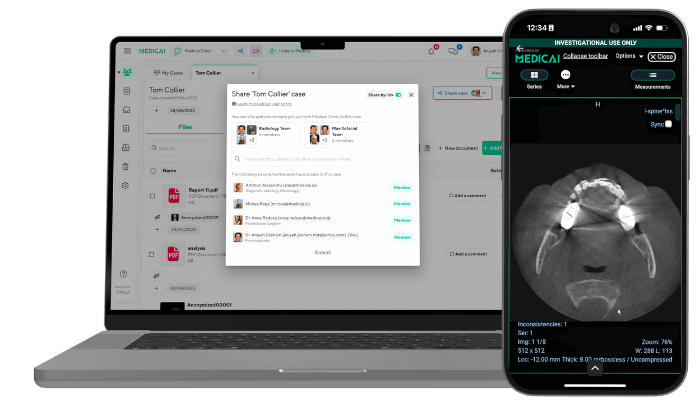
The tools above help a single person view images on a single Mac. Clinics, imaging centers, and care teams usually need more: access from any device, user permissions, and a way to send a study to a referring doctor without burning a disc. That is the job of a cloud viewer connected to a PACS. See how the Medicai DICOM Viewer handles it, or read our overview of the DICOM web viewer.
Frequently asked questions
What is the best free DICOM viewer for Mac?
It depends on how you will use it. For a quick look with nothing to install, the Medicai free online DICOM viewer runs in your browser. For a full free desktop app, Horos is the most established Mac option and supports Apple Silicon. Weasis is a good free choice if you also use Windows or Linux.
Is Horos still a good option in 2026?
Yes. Horos is still maintained. Its site lists version 4.0.1, which supports Apple Silicon and macOS 26 Tahoe. It remains free and open source, but it is not cleared for primary diagnosis.
What is the difference between OsiriX Lite and OsiriX MD?
OsiriX MD is the certified, paid, FDA-cleared, and CE-marked version, starting at $69.99 per month. OsiriX Lite is a free demo of OsiriX MD that is not certified for primary diagnosis and is meant for scientific use.
How can I open a DICOM file on a Mac without installing anything?
Use a browser-based viewer. Open the Medicai free online Medical DICOM viewer, click Load Files or Load Folder, and select your images. If the study is in a ZIP file, unzip it first.
Can I open DICOM files in Safari?
Safari cannot display DICOM files on its own, but a web-based DICOM viewer works in Safari. The Medicai free viewer runs in any modern browser, including Safari.
How do I download a DICOM viewer for Mac?
Download it from the developer’s official site: horosproject.org for Horos, osirix-viewer.com for OsiriX, weasis.org for Weasis, or download.slicer.org for 3D Slicer. Avoid third-party download sites, which may bundle unwanted software.
Do I need a special app to view CT or MRI scans on a Mac?
Yes, you need a DICOM viewer because Preview and Photos cannot open the format. Any viewer in this guide can open CT and MRI studies. A viewer only shows the images; ask your doctor or radiologist to explain what they mean.
This article is for general information and does not replace advice from your doctor.
Sources


Related Articles

Lets get in touch!
Learn more about how Medicai can help you strengthen your practice and improve your patients’ experience. Ready to start your Journey?
Book A Free Demo