How to View an MRI CD at Home: Windows, Mac, No Disc Drive, and Online

You had an MRI, and the imaging center handed you a CD. You put it in your DVD player or laptop, and nothing happens. That is normal. MRI discs are not video discs; they require specific software to open.
The quick answer
You cannot play an MRI CD on a DVD player or TV. The disc contains medical image files in the DICOM format, which only a DICOM viewer can open. To view it, you need:
- A computer with a disc drive, or an external USB disc drive, and
- A DICOM viewer: the one included on the disc, a free viewer you install, or an online viewer that runs in your browser.
The same steps work for CT, X-ray, and ultrasound discs.
What is on an MRI CD?
Most imaging discs contain the same few things:
- Image files in DICOM format. They often sit in a folder named DICOM or IMAGES, and the files may have no extension or end in .dcm.
- A file named DICOMDIR. It is an index that indicates which images belong to which series. Keep it with the image folders.
- A built-in viewer. Many discs include a small program, usually for Windows only, that opens the images.
- Sometimes, the radiology report as a PDF, and a readme file with instructions.
An MRI study consists of several series, each a stack of slices acquired with different settings. A single study can contain hundreds or thousands of images, which is why a photo viewer or video player cannot make sense of it. Check our guide on how long MRI results take.
Before you start
- Handle the disc by its edges and keep it out of the sun. A scratched disc may not read.
- Copy the whole disc to a folder on your computer before you do anything else. Working from a copy is faster and protects you if the disc fails later.
- Keep the files private. They contain your name, birth date, and medical images. Store them only on your own devices or trusted services.
- Remember that the images are not the diagnosis. The radiologist’s report and your doctor explain what the scan shows.
How to view an MRI CD on Windows
- Insert the disc. Windows usually shows an AutoPlay prompt or a notification instead of opening anything automatically.
- Open File Explorer, select the disc drive, and look at the files.
- If you see a program file such as a viewer, launch, or start application, double-click it. The built-in viewer should open and load your study.
- If Windows warns you about running the program, verify that it came from your imaging center’s disc before allowing it.
- If there is no viewer, or it will not run, copy the whole disc to a folder on your computer and open the folder in a DICOM viewer (see the options below).
- In the viewer, choose a series from the list, then scroll through the slices with your mouse wheel or arrow keys.
How to view an MRI CD on a Mac
The viewers burned onto imaging discs are almost always Windows programs, so on a Mac you need a different viewer. Apple’s Preview app cannot open DICOM files.
- If your Mac has no disc drive, connect an external USB CD or DVD drive.
- Insert the disc, open Finder, and copy the entire disc, including the DICOMDIR file and every folder, to a new folder on your Mac.
- Open that folder in a Mac DICOM viewer, or in an online viewer in Safari or Chrome.
- Choose a series and scroll through the slices.
Our guide to the DICOM viewer for Mac compares free and paid options.
If your computer has no disc drive
Most new laptops, and nearly all Macs, have no disc drive. You have three options:
- Buy or borrow an external USB CD or DVD drive. They are inexpensive and work with Windows and Mac.
- Ask a friend, family member, or library with a disc drive to copy the files to a USB flash drive for you.
- Ask the imaging center for an electronic copy instead. Many can send a secure download link or make the study available in a patient portal (see below).
Choosing a DICOM viewer
| Option | Works on | Good for |
|---|---|---|
| Viewer on the disc | Usually Windows only | Quick look, no installation |
| Free desktop viewer (for example, Weasis or Horos) | Weasis: Windows, Mac, Linux. Horos: Mac | Regular use and larger studies |
| Online viewer in your browser | Any computer with a modern browser | No installation; Macs and computers without admin rights |
For a wider comparison, see our list of the best DICOM viewers.
View it online in your browser
An online DICOM viewer opens your study without requiring any installation.
- Copy the disc contents to a folder on your computer.
- Open Medicai’s free online DICOM viewer in your browser.
- Select the folder or files from your disc.
- Choose a series and scroll through the images.
Before you use any online viewer, check how it handles your files: whether they are processed only in your browser or uploaded to a server, and how long they are kept. Your images are personal health information, so choose a tool whose privacy terms you understand.
Troubleshooting: when the MRI CD will not open
| Problem | What to try |
|---|---|
| The disc does not appear at all | Clean it gently with a soft cloth, try another drive, or ask the imaging center for a new copy. |
| The disc opens, but the viewer will not start | The viewer may be outdated or Windows-only. Copy the files and use another viewer. |
| Windows blocks the viewer | Confirm the disc came from your imaging center, then allow it, or use another viewer instead. |
| The viewer opens but shows no images | Make sure you copied the DICOMDIR file and all folders, then open the whole folder rather than single files. |
| Only a few images appear | You may be looking at one series. Check the series list, or ask whether the disc holds the complete study. |
| The disc holds only a PDF report | Ask the imaging center for the images in DICOM format, not just the report. |
| The images look very dark or very bright | Use the viewer’s window and level (brightness and contrast) tool, or its preset for the body area. |
If none of this works, the fastest fix is usually to call the imaging center’s records or film library department and ask for an electronic copy or a new disc.
Can I view an MRI CD on my phone, TV, or DVD player?
- DVD players and TVs: no. They only play video discs, and an MRI CD contains medical image files.
- Phones and tablets: not directly, because they have no disc drive. Once the files are copied from the disc, some online viewers can open them in a mobile browser, though a larger screen makes scrolling through slices easier.
- Game consoles and car players: no, for the same reason as DVD players.
Can I read my own MRI?
You can look through your images, and many people find it helpful to see what their doctor is describing. But reading an MRI takes years of training. Normal anatomy, scanner artifacts, and age-related changes can look alarming to an untrained eye, and real findings can be easy to miss.
Read the radiologist’s report and talk it through with your doctor. If you have doubts about the report, a radiology second opinion from another radiologist is the right next step, not your own interpretation.
Skip the CD next time: ask for an electronic copy
Under HIPAA, you have a right of access to your medical images. The provider must respond within 30 days, may extend once by 30 days, and must provide you with an electronic copy in the format you request if it can readily produce one, for a reasonable, cost-based fee. Many imaging centers can send a secure download link or make your study available in a patient portal.
When you ask, request:
- The complete study in DICOM format, not just the report or a few JPEG images.
- The final radiology report.
- Any prior studies of the same body area, if needed for comparison.
Our guide to the HIPAA right of access explains the rules in more detail.
Sending your MRI to another doctor or for a second opinion
If another doctor or a second opinion service needs your images, mailing the CD is the slowest option, and the disc may arrive damaged or unreadable. Ask the original imaging center to share the study electronically with the new provider, or upload the copied files to the provider’s secure portal. Keep your own copy of the disc and files either way. Read more about how medical image sharing works between providers.
For clinics and imaging centers: replacing patient CDs
Burning discs costs staff time and blank media, and patients often cannot open them. When a disc goes missing, the patient’s information goes with it, and a lost, unencrypted disc can constitute a reportable breach. Receiving practices face the other side of the problem: importing CDs from outside, chasing missing series, and phoning patients to bring in the right disc.
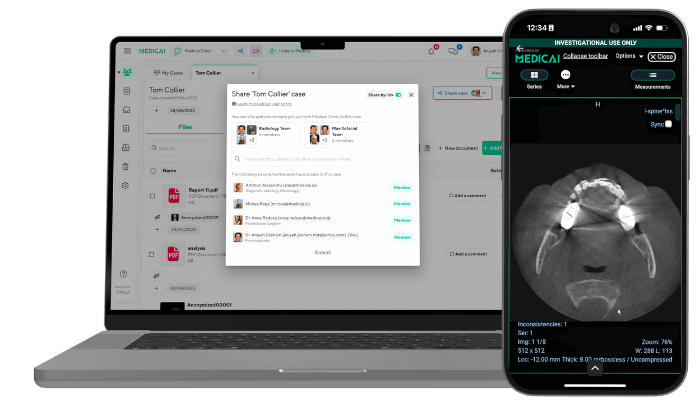
Sharing studies electronically solves both. With the Medicai Medical Imaging Exchange, imaging centers and practices can send a full DICOM study via a secure link, and the recipient, whether a patient, a referring doctor, or a second-opinion radiologist, can open it in a web browser without installing software or handling a disc.
Frequently asked questions
Can you play an MRI CD on a DVD player?
No. An MRI CD holds medical image files in DICOM format, not video. You need a computer with a disc drive and a DICOM viewer, or an online viewer after copying the files from the disc.
How do I view my MRI CD at home?
Insert the disc into a computer or an external USB drive, copy all the files to a folder, and open them with the viewer on the disc, a free DICOM viewer, or an online viewer in your browser. Then pick a series and scroll through the slices.
How do I open an MRI CD on a Mac?
Use an external USB drive if your Mac has no disc drive, copy the entire disc to a folder, and open it in a Mac DICOM viewer or an online viewer. The viewers included on imaging discs usually run only on Windows, and Preview cannot open DICOM files.
What if my computer does not have a CD drive?
Use an inexpensive external USB CD or DVD drive, ask someone with a drive to copy the files to a USB flash drive, or ask the imaging center to send your images electronically instead.
Why will my MRI CD not open?
Common causes are an outdated viewer on the disc, a Windows-only viewer on a Mac, a scratched disc, or opening single files without the DICOMDIR index. Copy the full disc and try a different viewer. If that fails, ask the imaging center for a new copy or an electronic link.
Can I view my MRI on my phone?
Not from the disc, because phones have no disc drive. After the files are copied to a computer or cloud storage you trust, some online viewers can open them in a mobile browser.
Can I get my MRI images without a CD?
Yes. Under HIPAA’s right of access, you can ask for an electronic copy of your images. Many imaging centers can send a secure download link or make the study available in a patient portal.
Sources
- Individuals’ right of access under HIPAA, HHS
- DICOM standard overview, DICOM Standards Committee (NEMA)


Related Articles



Lets get in touch!
Learn more about how Medicai can help you strengthen your practice and improve your patients’ experience. Ready to start your Journey?
Book A Free Demo