Patient Upload vs Automated Gateway Retrieval: When to Use Each

Every clinic that relies on imaging done elsewhere has to decide how those studies arrive. One option puts the patient in charge: they upload their own scans from a disc or download link. The other takes the patient out of the loop entirely: a DICOM gateway connected to the imaging source sends studies to you automatically.
Both work. They suit different situations, and most clinics end up using both. This guide explains how each route works, compares them side by side, and shows how to decide which to use for which patients and partners. If you are setting up the overall intake process, start with our guide to receiving outside imaging before a specialist appointment.

How patient upload works
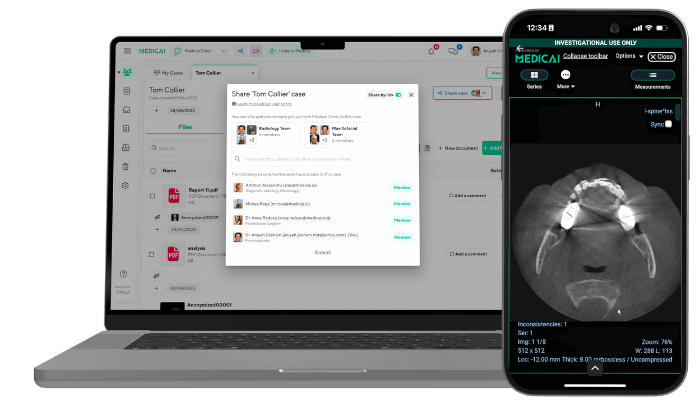
The patient already has a copy of their imaging, usually on a CD, a USB drive, or as a download link from the imaging center’s portal. They upload it to a portal or image-sharing platform, then share it with the clinic.
A typical flow:
- The clinic sends the patient upload instructions or a link, ideally when the appointment is booked.
- The patient creates an account or opens the link, selects the disc or folder, and uploads the study.
- The patient shares the study with the clinic, or the upload lands directly in the clinic’s intake queue.
- Clinic staff check the study belongs to the right patient, check it is complete, and add it to the patient record.
The patient does the transport, so the clinic needs no connection to the facility that did the scan. That makes patient upload the only practical electronic route for one-off studies from facilities the clinic has never worked with. Patients can check their disc at home first; see how patients view an MRI CD.
How automated gateway retrieval works
A DICOM gateway (also called a DICOM node or router) is software installed at, or connected to, an imaging site. It receives studies from that site’s scanners or PACS over the standard DICOM network protocol and securely forwards them to the receiving clinic’s PACS or cloud imaging platform.
In DICOM terms, each system is an application entity (AE) with its own AE title, and studies move between them via the C-STORE service, the DICOM standard’s mechanism for transferring images between DICOM applications. Newer systems can also exchange studies over the web using DICOMweb.
A typical flow:
- Install and configure the gateway once: set up the sending systems to send to it, and connect it to the destination.
- When a study is completed or matches routing rules (for example, a referral to a particular clinic), the gateway sends it automatically.
- The gateway forwards the study to the destination, where it arrives complete, in its original DICOM format.
- The study matches to the patient record and is ready to view, often before anyone asks for it.
The setup takes IT work on both sides, but after that nobody has to remember anything. For how studies move between systems once they arrive, see our guides to PACS integration and PACS server configuration.
Patient upload vs gateway retrieval, side by side
| Patient upload | Automated gateway retrieval | |
|---|---|---|
| Who moves the images | The patient | Systems, automatically |
| Setup | An upload portal or link; no connection to the imaging site | One-time installation and configuration at the imaging site and the destination |
| Works with | Any facility, including ones you have never worked with | Only sites where a gateway or connection is in place |
| Speed | Depends on when the patient uploads | Studies can arrive as soon as they are completed |
| Completeness | Only what is on the patient’s disc or download, which may be partial or screenshots | The full study in original DICOM format, as sent by the source system |
| Report | Only if the patient has it and uploads it | Depends on the setup; reports often travel separately from images |
| Patient identity | Needs checking: the study carries the outside facility’s patient ID | Needs a matching rule, but can be automated for regular partners |
| Patient effort | The patient has to act, and some cannot or will not | None |
| IT effort | Low | Higher at setup, low afterwards |
| Volume it suits | Occasional studies | Steady, recurring volume |
| Typical failure | The patient forgets, uploads the wrong study, or the upload fails | A configuration or network change stops studies flowing until someone notices |
When to use patient upload
- The imaging was done at a facility you do not work with regularly.
- The patient already has the disc or a download link.
- Volume from that source is low, so setting up a permanent connection isn’t worth it.
- You need images before a first visit, and there is no time to arrange anything else.
- The patient wants control over who sees their imaging, for example when seeking a second opinion.
To make it work, ask at booking, send clear instructions with the appointment confirmation, and give a fallback for patients who struggle with uploads, such as bringing the disc to the visit.
When to use automated gateway retrieval
- The same imaging sites refer to you week after week, such as partner imaging centers or your own locations.
- Studies are large or numerous, so manual transfer would take staff time every day.
- You need studies before patients arrive, without anyone chasing them.
- You want complete DICOM studies every time, including all series, so specialists can measure and compare.
- You are connecting multiple sites of your own group to one PACS or imaging platform.
To make it work, agree on routing rules with each sending site, test with real studies, and monitor the connection so you catch a broken link the same day rather than when a patient arrives without images.
Most clinics need both
The two routes are not competitors. A practical setup looks like this:
- Connect your highest-volume sources by gateway: your own locations and the imaging centers that refer most often.
- Offer patient upload for everything else, as the standard route for one-off studies.
- Keep CD and USB import as the last resort, for patients who arrive with a disc.
- Review the mix every few months. If a patient repeatedly uploads from one facility, that facility is a candidate for a gateway connection.
Whichever route a study arrives by, the steps after arrival are the same: match it to the right patient, check it is complete, import it into the system clinicians use, and attach the report.
Setup checklists
Patient upload:
- Choose an upload method patients can use without installing software, from a computer or phone.
- Write short instructions: how to upload a whole disc or folder, what to do if the disc will not open, and who to contact for help.
- Automatically send the instructions with every appointment confirmation for referred patients.
- Decide where uploads land and who checks them: identity, completeness, and whether a report is included.
- Define a fallback for patients who cannot upload.
Gateway retrieval:
- List the imaging sources that send you studies regularly, and rank them by volume.
- For each, agree on what is sent (all studies, or only studies for referred patients) and when.
- Configure the sending systems and the gateway, including DICOM settings such as AE titles, and confirm the network path with each site’s IT team.
- Test with real studies and check they arrive complete and match the right patient.
- Set up monitoring and a named owner, so a stopped connection is noticed quickly.
Where Medicai fits
Medicai supports both routes, based on how Medicai describes its own products:
- Gateway retrieval: Medicai Cloud PACS lets practices “automatically retrieve imaging from their own local PACS and modalities,” and Medicai deploys DICOM nodes that “can be remotely installed and configured within hours” to pull data from local PACS systems or imaging modalities, with encryption and access controls.
- Patient upload: partner practices can let patients upload their previous imaging studies. Patients can also create a free Medicai account, upload past imaging from CDs and USB drives, and share it with physicians through a link.
- After arrival: studies open in a browser or mobile app and are available to the care team with access controls.
See Medicai Cloud PACS and Medicai for patients for details.
Frequently asked questions
What is a DICOM gateway?
A DICOM gateway, also called a DICOM node or router, is software that receives medical images from scanners or a PACS using the DICOM protocol and forwards them to another system, such as a cloud PACS. It lets studies move between sites automatically.
Is patient upload or gateway retrieval faster?
Gateway retrieval is usually faster for regular partners, because studies can be sent as soon as they are completed without anyone acting. Patient upload depends on the patient, but it is often the fastest option for a one-off study from a facility you have no connection with.
Do patient-uploaded studies have full diagnostic quality?
They can, if the patient uploads the original DICOM files from their disc or download. Problems arise when a disc contains only screenshots or part of the study, so clinics should check completeness when an upload arrives.
Do we need IT staff to use a DICOM gateway?
Some IT work is needed at setup, on both the sending and receiving side, to configure the systems and the network path. After that, a gateway runs automatically and mainly needs monitoring. Cloud vendors often handle much of the setup remotely.
How do we match incoming studies to the right patient?
Outside studies carry the sending facility’s patient ID, not yours. Match on name, date of birth, and exam date before importing, and resolve any differences. For regular gateway partners, you can agree on matching rules and partially automate them.
Should we use both routes?
Yes, for most clinics. Use gateway retrieval for high-volume, recurring sources such as your own sites and partner imaging centers, and patient upload for one-off studies from everywhere else.
Sources


Related Articles

Lets get in touch!
Learn more about how Medicai can help you strengthen your practice and improve your patients’ experience. Ready to start your Journey?
Book A Free Demo