How to Receive Outside Imaging Before a Specialist Appointment

A referred patient arrives for an orthopedic, oncology, or neurology consult. The MRI that prompted the referral was done at another facility two weeks ago. The images are on a CD the patient forgot at home, the disc will not open, or the report came by fax without the images. The specialist either works from the report alone, delays the decision, or orders the scan again.
This guide is for the people who prevent that: intake and scheduling staff, nurse navigators, practice managers, and the physicians they support. It outlines a repeatable workflow for requesting outside imaging, receiving it, matching it to the right patient, and reviewing it before the appointment.
Why it matters
Outside images that never reach the specialist, or reach them in a form they cannot use, lead to repeat imaging. A study from the University of California, San Francisco, published in the American Journal of Roentgenology in 2012, looked at 267 patients who had abdominal CT or MRI elsewhere before a liver cancer procedure. Repeat imaging rates were:
| Situation | Patients who had the scan repeated |
|---|---|
| No outside images available | 72% |
| Outside images available, but not imported into PACS | 52% |
| Outside images imported into PACS | 11% |
| Imaging done at the treating institution | 13% |
Once outside images were imported, patients were repeat-scanned about as often as patients imaged in-house. Simply having the images was not enough; they had to be in the system clinicians actually use. Repeat scans add cost and delay, and for CT they add radiation exposure.
The ways outside imaging arrives
| Route | How it works | Strengths | Weak points |
|---|---|---|---|
| CD or USB drive | The imaging facility burns a disc; the patient brings or mails it | Universal; no setup needed | Gets forgotten or lost; may not open; must be imported by hand; may hold JPEGs instead of DICOM |
| Patient upload | The patient uploads the study from a disc or download link to a portal or sharing platform | Arrives before the visit; no physical media at the clinic | Depends on the patient; files can be incomplete; needs identity matching |
| Facility-to-facility electronic transfer | The outside facility sends the study electronically, by DICOM transfer to a gateway, an image exchange network, or a secure share link | Fast; complete studies; no patient effort | Needs a connection or account on both sides; some facilities only offer discs |
| Report only (fax or portal) | The facility sends the written report but no images | Quick; already common | The specialist cannot see the images or compare them |
Most clinics need to handle all four. The workflow below aims to move as many studies as possible to electronic routes, catch problems early, and make the CD the fallback rather than the default.
The CD format itself is standardized. The IHE Portable Data for Imaging (PDI) profile defines how images and reports should be written to CDs, DVDs, and USB drives in DICOM format, with an optional viewer. Discs that follow it import more reliably, but in practice a disc can still arrive with missing series, a viewer that will not run, or only screenshots.
A step-by-step workflow, from referral to visit
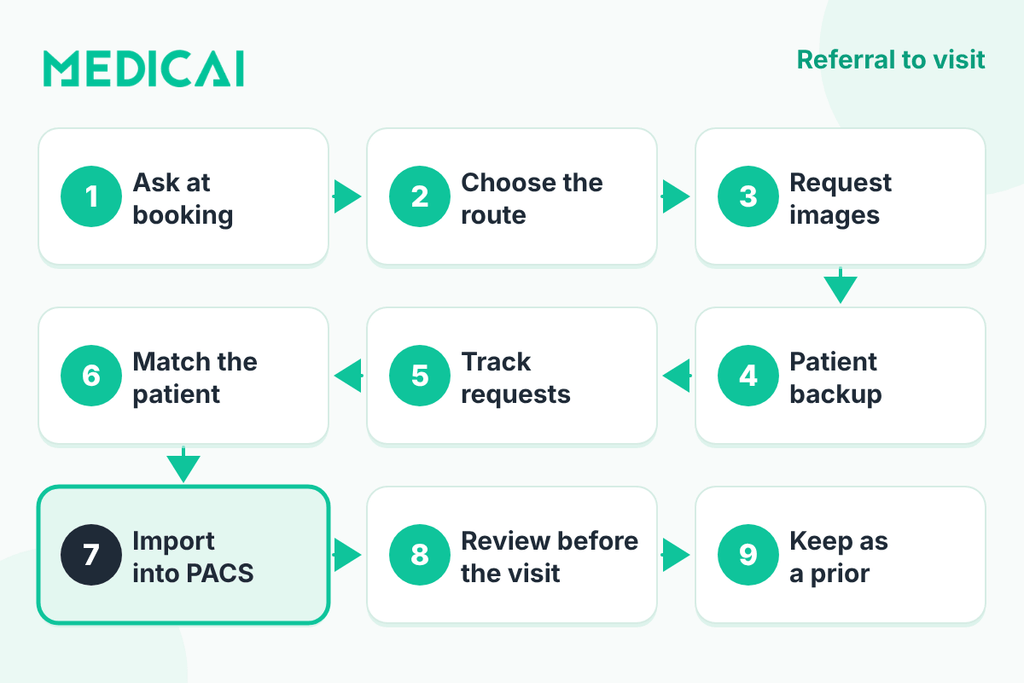
1. Ask about imaging when the referral comes in
Start as soon as the appointment is booked, not the day before. At intake, capture:
- whether the patient has had imaging for this problem, and which kind (X-ray, CT, MRI, ultrasound, PET);
- where and when each study was done;
- whether the patient has a copy, and in what form (disc, download link, portal access);
- the referring provider, who may already have the images or the report.
Add these as required fields in your scheduling script or referral form, so you ask for them every time, not only when someone remembers.
2. Choose the fastest route for each study
Use the order of preference from the table above: electronic transfer from the facility first, patient upload second, CD or USB last. Ask for the report and the images together; a report without images, or images without a report, both slow the specialist down.
3. Request the images from the outside facility
In the US, HIPAA allows one provider to send protected health information to another provider for treatment “without needing patient consent or authorization,” according to the federal Office of the National Coordinator for Health IT. Many facilities still have their own release forms or processes, so check what each one requires and keep templates ready.
A clear request includes:
- patient name, date of birth, and the outside facility’s record number if known;
- the exam type, body part, and date;
- a request for the full DICOM study and the final report;
- where to send it (your electronic destination, or your mailing address as a fallback);
- the appointment date, so the facility knows the deadline.
4. Give the patient a backup path
In parallel, tell the patient how to send the imaging themselves if they have a disc or download link: an upload link or portal, plus clear instructions to bring the disc to the visit if upload is not possible. Patients can view their own discs at home first to check they contain the right study; see how patients view an MRI CD.
5. Track every request until it arrives
Keep a simple log for each pending study: patient, facility, date requested, route, and status. Set a checkpoint a few business days before the appointment for anything still missing, and follow up then, rather than discovering the gap at check-in.
6. Receive and match to the right patient
When a study arrives, confirm it belongs to the right patient before it goes anywhere near the chart. Outside studies carry the outside facility’s patient ID, so match on name, date of birth, and exam date, and resolve any spelling or name-order differences. Then check it is complete: all series present, images in DICOM format rather than screenshots, and the report attached.
7. Import into the system clinicians use
This is the step the UCSF study shows matters most. Import the study into your PACS or imaging platform, mark it clearly as an outside study, link it to your own patient record, and attach the report. The goal is for the specialist to open outside images in the same viewer and from the same patient record as in-house images, and to compare them with any later scans. For how imaging connects to the EHR and scheduling systems, see our guide to PACS integration.
8. Review before the patient arrives
Flag the study as ready for the specialist ahead of the visit. If your practice uses radiologists to review outside studies, this is when they do so. The specialist can then decide in advance whether the outside imaging answers the clinical question or whether new imaging is needed, instead of deciding in the room. When the question is a disputed or uncertain finding, a formal radiology second opinion may be appropriate.
9. Keep it for next time
After the visit, keep the imported study available as a prior for future comparisons, according to your retention policy. A follow-up MRI is far more useful when the earlier one is one click away.
Intake checklist
| When | Task | Owner |
|---|---|---|
| At booking | Ask about prior imaging: type, facility, date, and whether the patient has a copy | Scheduling |
| Same day | Send the request to each outside facility, with the appointment date | Intake or medical records |
| Same day | Send the patient upload instructions as a backup | Intake |
| A few business days before the visit | Check the log and follow up on anything missing | Intake or nurse navigator |
| On arrival of each study | Match patient identity, check the study is complete, and confirm the report is attached | Medical records or imaging staff |
| Before the visit | Import into PACS or the imaging platform, link to the patient record, and flag it for the specialist | Imaging staff |
| After the visit | Keep the study available as a prior | Imaging staff |
Common problems and how to fix them
| Problem | Fix |
|---|---|
| The disc will not open or the viewer on it will not run | Copy the files to a computer and open them in a separate DICOM viewer, such as Medicai’s free online DICOM viewer; if the files are damaged, request an electronic copy from the facility |
| The disc holds screenshots or JPEGs instead of DICOM | Ask the facility for the original DICOM study; screenshots cannot be measured or compared reliably |
| Images arrived but no report | Request the final report separately; many facilities send images and reports through different channels |
| Only some series arrived | Compare against the report’s description of the exam and request the missing series |
| Patient details do not match | Do not import until resolved; check name spelling, name order, and date of birth with the patient or the sending facility |
| The patient’s upload fails or is very slow | Large CT and MRI studies can be hundreds of files; ask the patient to upload the whole folder from a computer on a stable connection, or fall back to the facility sending it directly |
| The facility only offers discs | Accept the disc, but ask whether they can send electronically next time, and note it in your referral contacts list |
Where Medicai fits
Medicai is a cloud imaging platform specialty practices use to receive, view, and share imaging. Based on what Medicai describes on its own site:
- Practices can automatically receive imaging from their own PACS and modalities, and Medicai also offers a DICOM Gateway product.
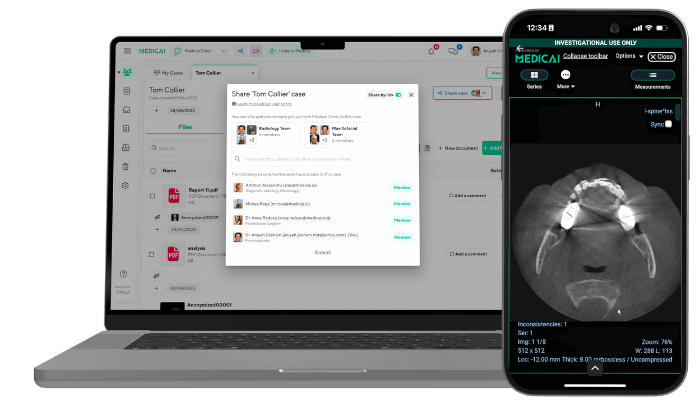
- Patients can create a free Medicai account, upload past imaging from CDs and USB drives, and share it with physicians through a link, so the disc does not have to travel.
- Instead of large email attachments, Medicai sends a secure link to the doctor’s inbox, with access controls and auditing so only authorized providers view the images.
- Studies open in a browser or mobile app, with no software to install.
- Medicai integrates with EHR and RIS systems through HL7 and FHIR, so outside studies can be tied to the patient record.
See Medicai medical image sharing and Medicai for patients for details. For background on the options and safeguards, read our guides to medical image sharing and HIPAA-compliant medical image sharing.
Frequently asked questions
How can a specialist get a patient’s imaging from another facility?
Ask the outside facility to send the full DICOM study and the final report, preferably electronically, and give the patient a way to upload their own copy as a backup. Start at booking, track each request, and follow up a few business days before the appointment.
Does the patient need to sign a release for us to get their images?
Under HIPAA, a provider may send protected health information to another provider for treatment without the patient’s authorization. Many facilities still use their own release forms, so check each facility’s process. This is general information, not legal advice.
Why import outside images into our PACS instead of just viewing the CD?
Imported studies sit in the same system and patient record as your own images, so specialists can find them, compare them with later scans, and use them as priors. In a UCSF study, patients whose outside images were imported had repeat imaging 11% of the time, compared with 52% when the images were available but not imported.
What should we do when outside images arrive without a report?
Request the final report from the facility that performed the exam. The report records the original radiologist’s interpretation, and the specialist will usually want both.
What is the fastest way to receive outside imaging?
Electronic transfer directly from the outside facility, followed by patient upload. Discs are the slowest and least reliable route because they depend on the patient remembering them and on the disc opening correctly.
Can patients send their own imaging before the appointment?
Yes, if your clinic provides a way for them to do so. Patients can upload studies from a disc or download link through a patient portal or an image-sharing platform, then share access with the clinic before the visit.
Sources


Related Articles
Lets get in touch!
Learn more about how Medicai can help you strengthen your practice and improve your patients’ experience. Ready to start your Journey?
Book A Free Demo